Trades
The Trades view is where you create, review, edit and journal trades.
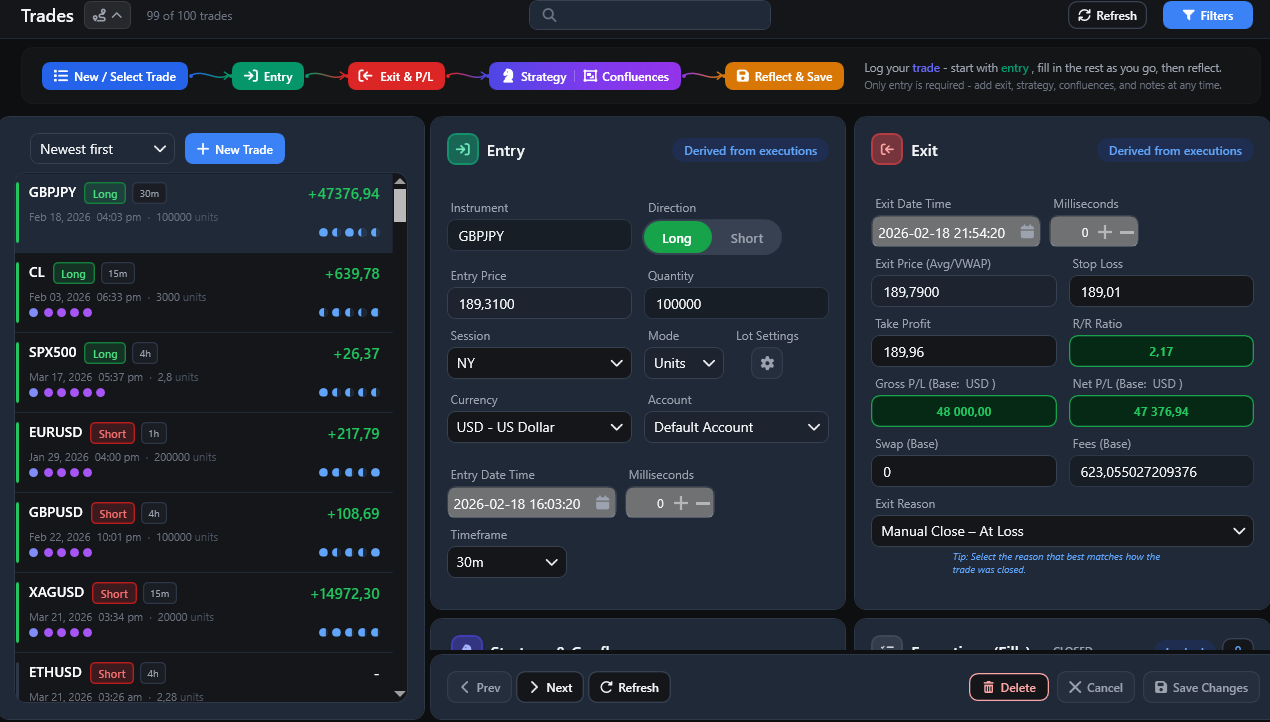
Trade List, Search and Filters
The left panel shows trades in the current filtered scope. Rows can include instrument, direction, date and realised Net P/L. The five Self-Reflection dots give a compact indication of how much of the five rating categories has been completed.
Use the sort selector to change list order.
Use the search field to narrow the list.
Press Ctrl+F to focus the Trades search field.
Use Filters for date, instrument, direction, account and other available criteria.
Clear Filters restores the unfiltered list.
Prev/Next navigation follows the current filtered list.
Creating a Manual Trade
Click New Trade.
Complete the required Entry fields and, when useful, define the initial risk/target plan.
Add Exit data after the trade is closed.
Add strategy/confluence tags, notes, images and reflection data as needed.
Click Save Changes.
In Demo Mode, a new manual trade can be created while fewer than 20 persisted trades exist.
Entry Card
The Entry card is the main setup/risk surface. It includes:
Instrument and Direction;
Entry Date Time and optional milliseconds;
Entry Price and Quantity;
Initial SL;
Initial TP;
Planned R;
Planned Targets;
Session and Timeframe;
Units/Lots position-size information;
Currency and Account.
Quantity is stored in units. For a selected cTrader execution-based trade, Lots display uses one unambiguous persisted broker-authoritative contract size when available. Otherwise FTJ falls back to configured Units per Lot for the selected account and symbol. Use Lot Settings for manual trades and when fallback conversion is missing or incorrect.
When the trade is built from executions, entry price and quantity can be read-only and marked Derived from executions.
Initial Risk and Planned R
Initial SL is the original risk-defining stop FTJ has recorded for the trade. Initial TP is the original planned target when known. A later broker stop move to break-even or a trailing stop does not overwrite a known Initial SL. FTJ does not invent an original level when the source never supplied it.
Planned R compares planned reward with the original Entry-to-Initial-SL risk. It describes the plan, not the final result.
Planned R is direction-aware:
for a Long, Initial SL must be below Entry and a planned target must be above Entry;
for a Short, Initial SL must be above Entry and a planned target must be below Entry.
Invalid or inverted risk/target geometry makes Planned R unavailable instead of producing a misleading extreme or negative value. Valid large Planned R values are not arbitrarily capped.
Planned Targets
Use Planned Targets when the original plan contains more than one take-profit level.
Add TP1, TP2 and further planned target rows as needed.
Assign a percentage allocation to each target.
A complete saved plan must total 100%.
Weighted Planned R uses the original Entry-to-Initial-SL risk denominator and the target allocations.
While a planned-target plan exists, TP1 controls the summary Initial TP value.
Changing planned targets can change Planned R, but it does not change Realised R, broker P/L, executions or Stop History.
Broker fills/exits and observed stop history are not reverse-engineered into a planned-target plan.
Duplicating a trade copies its planned-target plan; later edits to the copy are independent.
Planned Targets is a secondary expander so a simple single-target trade does not require the larger planning surface.
Exit Card
The Exit card focuses on the final result. Depending on the trade it includes:
Exit Date Time and optional milliseconds;
Exit Price (Avg/VWAP);
Realised R for eligible closed trades;
Gross P/L and Net P/L in account base currency;
Swap and Fees;
Exit Reason;
Broker reported / Calculated P/L controls where eligible;
Adjust Costs where supported.
Realised R is read-only and uses effective realised Net P/L in account base currency divided by the original risk in account base currency. An open trade can therefore have Planned R while Realised R remains unavailable.
Open trades do not show realised Gross/Net P/L and are excluded from closed-trade performance KPIs.
Broker Reported and Calculated P/L
Eligible imported execution-based trades can show a two-option selector:
Broker reported - use usable booked account-currency P/L supplied by the broker.
Calculated - calculate Gross P/L from current executions and available conversion data.
Broker reported cannot be selected when no usable broker P/L exists. Save persists a change; Cancel restores the previously saved source.
Adjust Costs
For eligible imported trades, Adjust Costs creates separate journal adjustments for Fees and Swap.
Broker-reported source values are preserved.
Net P/L uses the effective adjusted costs.
Save persists adjustments; Cancel restores the prior state.
Executions and Stop History
Executions & Stop History groups the fill sequence and observed broker stop management without mixing either with the original plan.
Executions
Executions represent individual fills. Depending on the selected trade and its state, actions can include Add, Create Entry, Edit, Reload, Delete, Close Position, split/merge and link/group operations.
FTJ derives execution-based trade values from the fills, including:
entry and exit timestamps;
Long/Short direction;
volume-weighted average entry/exit price;
quantity;
open/closed state.
A position is closed when buy and sell quantities net to zero within the application’s quantity tolerance.
Closed execution-based trades can be locked against accidental changes. Unlock only when deliberately correcting the underlying fills. Broker-synced open trades retain their current 1.1.25 manual-edit behaviour; locking them by default is deferred from this release.
Stop History
When FTJ observes trustworthy broker stop changes, the Initial SL area can show History (n). Opening it reveals the Stop History subsection inside Executions & Stop History.
Stop History:
keeps Initial SL separate from later management;
stores only stop states FTJ actually observed from the broker workflow;
can identify an observed stop exactly at Entry as a break-even stop observation;
deduplicates repeated unchanged observations;
survives restart and database switching with the journal data.
The recorded time is when FTJ observed the broker state. It is not an invented exact broker amendment timestamp. Manual trades do not fabricate Stop History, and unavailable broker history is not reconstructed.
Setup, Images, Notes and Reflection
The lower review workflow uses progressive disclosure so the screen can stay compact without removing any journal data.
Top-level sections:
Strategy & Confluences also contains the Pre-Trade Plan;
Images contains chart screenshots;
Trade Notes contains post-trade notes;
Executions & Stop History contains fills and the secondary Stop History expander;
Self-Reflection contains the five 1-5 ratings, Mistakes and Additional Reflection.
Default workspace behaviour:
Strategy & Confluences starts collapsed;
Images chooses an empty/populated default until you manually choose a preference;
Trade Notes starts expanded;
Executions & Stop History starts expanded;
Self-Reflection starts collapsed.
After you explicitly expand or collapse these top-level review sections, FTJ remembers the workspace preference between trade switches and application restarts. This is a view preference, not per-trade journal data.
Collapsed headers retain useful summaries such as selected setup tags, screenshot count, note text, execution/stop-history counts and reflection completion/review state.
Images are stored inside the local database. Larger image limits increase database size.
Structured Mistakes
The Self-Reflection card supports reusable Mistakes for execution and discipline observations.
Click Add Mistake to select one or more reusable mistake tags.
Remove a selected tag when it does not apply.
Click No mistakes only after actively reviewing the trade and finding no applicable mistake.
Use Manage mistakes to open Strategy > Mistakes.
FTJ keeps Not reviewed separate from Reviewed: no mistakes. Mistake changes are staged with the rest of the trade. Save Changes persists them; Cancel restores the last saved review.
Saving, Cancelling and Unsaved Changes
Save Changes persists the current trade and related staged settings.
Cancel restores the last persisted state.
Delete permanently removes the selected trade after confirmation.
Leaving the trade/page or closing the application with unsaved changes prompts for Save, Discard or Cancel.
Warning
Deletion cannot be undone directly. Keep a current backup.
Demo Mode
Below 20 persisted trades: new manual trades and imports are available.
Exactly 20: new trades/imports are blocked, but existing core trade details remain editable.
Above 20: core trade details and execution mutations are read-only.
Viewing, Dashboard/Reports review, export, deletion, notes and self-reflections remain available above the limit.