Accounts
FTJ lets you manage multiple trading accounts, each with its own base currency, starting balance and cash flows. Every trade belongs to exactly one account.
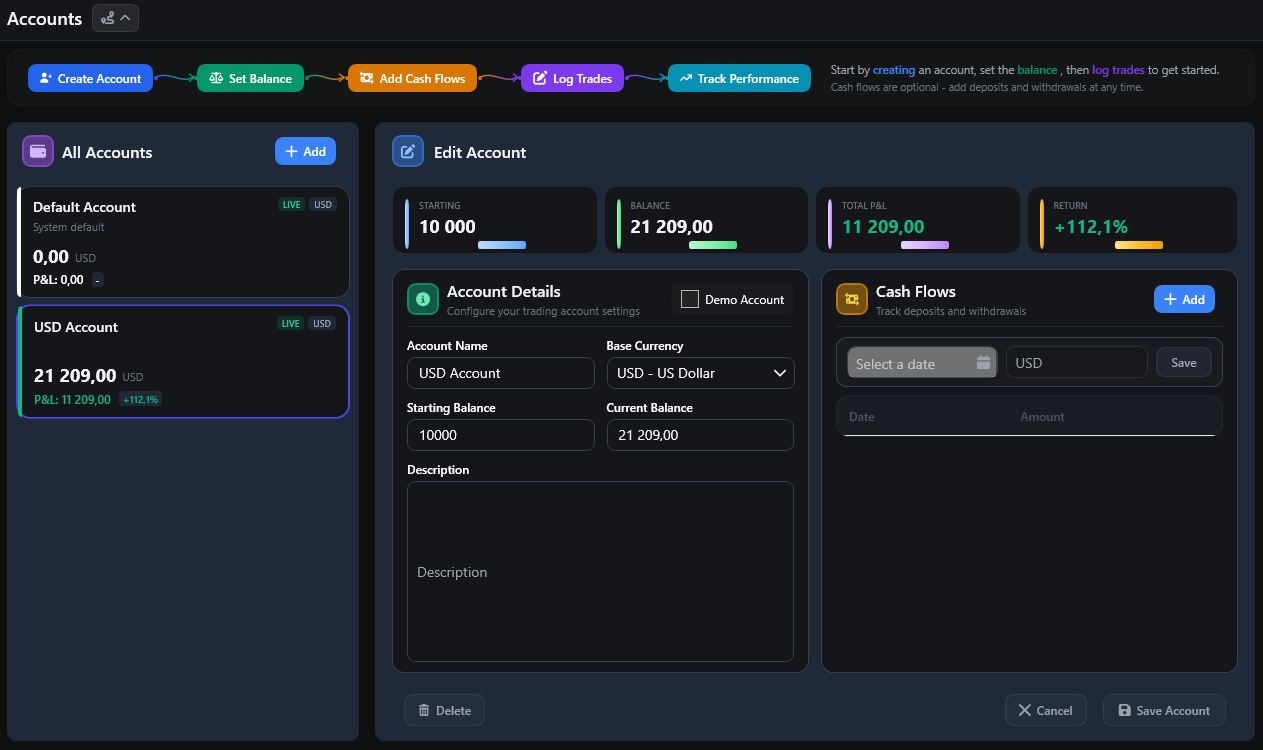
Creating an Account
Open Account from the sidebar.
Click Add above the account list.
Enter:
Account Name - a descriptive name.
Base Currency - the currency in which the account is denominated.
Description - optional notes.
Starting Balance - the balance before recorded trading activity and cash flows.
Demo Account - marks a paper/demo account for Dashboard filtering.
Click Save.
Note
Current Balance is calculated from Starting Balance, recorded cash flows and trade P/L. It is read-only; change the underlying values instead of typing directly into Current Balance.
Editing an Account
Select an account from the list.
Edit its details in the right-hand panel.
Click Save.
Changing an account’s base currency can change which exchange rates are required for existing trades. Check the Rates view after making this change.
Deleting an Account
Select an eligible account and use Delete Account from the account list’s context menu.
Deletion protections:
The default account cannot be deleted.
An account containing trades cannot be deleted.
Remove or move associated trades before deleting an account that is in use.
Cash Flows
Cash flows represent deposits and withdrawals that are not trading results.
To add a cash flow:
Click Add in the Cash Flows card.
Choose the date.
Enter a positive amount for a deposit or a negative amount for a withdrawal.
Click Save in the cash-flow input bar.
Click the main account Save button to persist the account changes.
Cash flows help keep balance and equity calculations accurate. Without them, deposits can look like trading gains and withdrawals can look like trading losses.
Multiple Accounts
Common uses include:
one account per broker;
separate live and demo accounts;
separate accounts for different currencies or trading environments.
The Dashboard can filter Live Only, Demo Only or All accounts, and can also select one specific account.
Demo Mode
Account management remains available in Demo Mode.
Demo Mode users can:
create multiple accounts;
edit account details;
manage cash flows;
delete eligible empty non-default accounts.
The Demo Mode trade limit is global for the current database. Creating another account does not reset or increase the allowed trade count.