Strategies, Confluences, Exit Reasons and Mistakes
Use structured tags to record the setup, supporting conditions, reason a trade was closed and recurring execution or discipline mistakes. Navigate to Strategy in the sidebar.
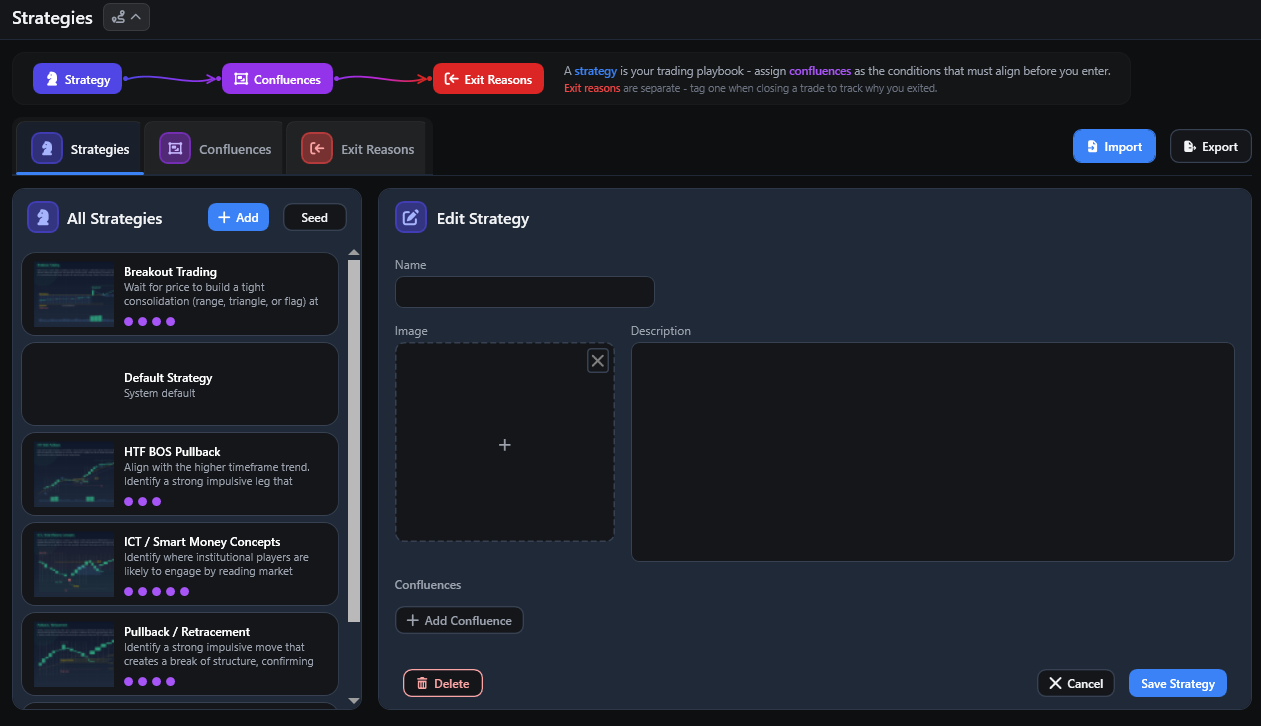
Workspace
The workspace provides areas for:
Strategies - named setups or approaches.
Confluences - conditions or observations associated with a setup/trade.
Exit Reasons - structured reasons for closing a trade.
Mistakes - reusable execution and discipline errors used during post-trade review.
Strategies
Create a strategy with a name, optional description, optional image and linked confluences. Save the strategy before leaving the workspace.
A strategy that is already used by trades can be protected from unsafe deletion until those references are removed.
Confluences
Confluences are reusable tags for conditions or observations that were relevant to a trade. They do not prove that a setup is good or predict a future outcome.
A strategy can link to expected confluences as a reusable checklist/template. Trade-level tagging records which items were actually present for that trade.
Exit Reasons
Exit reasons record why a position was closed, such as a stop, target, time-based decision or manual exit. Select an exit reason in the trade Exit card.
Mistakes
The Mistakes tab manages the reusable mistake catalogue used by the Self-Reflection card in Trades.
Built-in mistakes can be renamed or given a different description, but they cannot be deleted.
Custom mistakes can be created and edited.
An unused custom mistake can be deleted.
A custom mistake already used by historical trades cannot be deleted; rename it instead so historical reviews remain intact.
Use Add Mistake in a trade’s Self-Reflection card to apply these definitions during post-trade review. Manage mistakes from the trade navigates directly to this tab.
Seeding Built-in Items
Seed Strategies & Exit Reasons adds missing built-in catalogue items. Running the action should not intentionally duplicate items that already exist.
Mistakes have their own built-in starter definitions and are stored locally with the journal database.
Import and Export
Where enabled, strategy catalogue import/export can move structured strategy data between databases. Review imported content before using it as part of the journal workflow.
Demo Mode
Demo Mode supports limited custom catalogue creation for the existing strategy catalogue:
up to 3 custom strategies;
up to 5 custom confluences;
up to 5 custom exit reasons.
Built-in seeding remains available according to the current catalogue rules. When a limit is exceeded, save/create actions can remain blocked until the count is reduced or Full Access is activated.
Unsaved Changes
Leaving Strategies, Confluences or Exit Reasons with unsaved changes prompts you to save, discard or cancel navigation. Mistake definitions are persisted when Save Mistake is clicked.