Your trading history,
made useful.
Import a supported trading history file to explore your results, costs and timing. Inspect the records behind each finding. Your trade data is processed in your browser, not uploaded to our servers.
Use a supported report file
Understand the real numbers
Trace findings to the imported history
Supported report layouts vary by platform and broker. Trade Analyzer checks your file and explains which analyses are available.
Supported files and export tips
MetaTrader 4: Export Account History as an HTML report.
MetaTrader 5: Export trading History as an HTML or Excel-compatible report (Open XML / XLSX).
cTrader: Export an Account Statement as HTML or Excel (XLSX). Including Opening time enables more timing analyses; it is not required to review your net results.
Forgalis TradingJournal CSV: In the Windows app choose Export All Trades to CSV. If the file contains more than one account, select a single account before reviewing results. Open trades are excluded; results use that account's converted base currency where available.
Other CSV: The separate Forgalis normalized CSV schema is also supported, as is one older cTrader Trades-table CSV layout in EUR. These are not interchangeable formats; CSV availability and columns vary between platforms.
Use a report covering the period you want to analyze. Unsupported layouts or missing essential fields are explained when you import. You do not need an account or a broker connection to use this tool.
Analysis coverage
Performance at a glance
Additional performance metrics and source definitions
Net P&L over time
Cumulative closed-position net result, not account equity. Select any marker to inspect its trade.
Outcome distribution
Winning, losing and breakeven closed positions. Select a group to inspect its trades.
Net P&L by instrument
Net results and activity by instrument. Select an instrument to inspect its records.
Drawdown & Recovery
Drawdown of realized trading results, not account equity.
Compare trading periods
Compare results from two closing-date intervals.
Explore your trading history
Explore results by trade, month, day and time. Charts that need information missing from your report explain what is unavailable.
Net P&L per trade
Net outcome for each imported trade. Select a bar to inspect the source record.
Monthly P&L Comparison
Realized net P&L grouped by closing month.
Trading Calendar
Realized net P&L by closing date.
Trade Duration Analysis
Holding times grouped into six ranges, when opening and closing times are available.
Trading Activity Heatmap
Recorded opening activity by weekday and hour. Darker or brighter cells show frequency, not profit.
Your trading review
Explore notable results and inspect the records behind each finding.
Performance check
A closer look at historical results. This is descriptive analysis, not a prediction or strategy rating.
What is driving your net result?
These figures use recorded trade outcomes and charges where available.
Buy versus sell
Compare the number of records and net result by opening direction. Small samples may be unrepresentative.
When trades happened
Choose whether the historical net result is grouped by entry or final exit time.
By weekday
Historical net results by the selected day. Days with no recorded activity remain visible.
By hour
Historical net results by the selected hour (00–23). Only hours with recorded activity appear.
Scroll within the hour list to explore more active hours.
Closed positions
The table shows the full imported review, subject to the 100-row display limit.
| Instrument | Direction | Closed (source time) | Volume | Recorded costs | Net P&L | Source ID |
|---|
Was this review useful?
Help improve Trade Analyzer. A quick answer or suggestion is enough. No account or uploaded trade data is needed.
This feedback is optional. Choosing an answer does not send anything. The email link opens your email app; you send the message there yourself. Your imported history, results, filenames and account information are not attached or copied. Privacy policy.
Understand the trade. Remember the decisions.
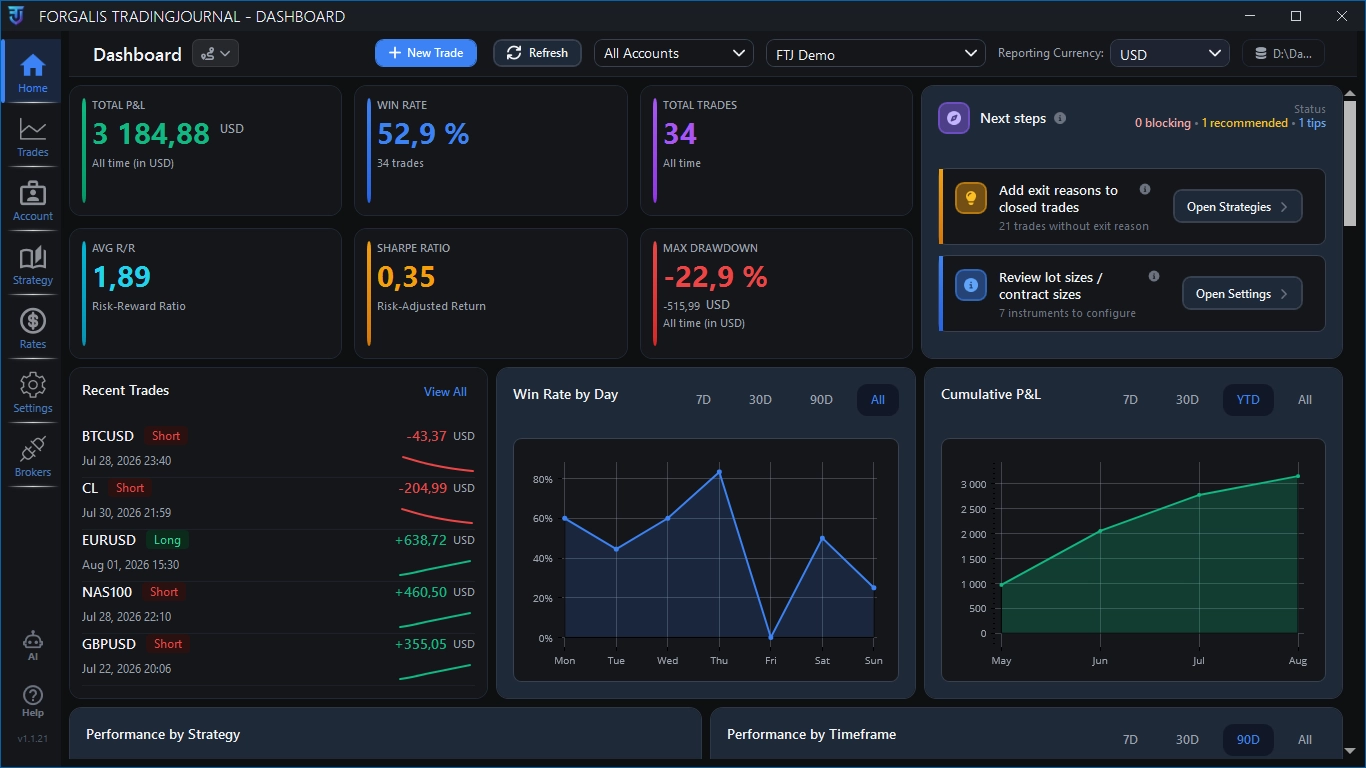
Trade Analyzer helps you review what happened in a supported history file. Forgalis TradingJournal is a separate Windows desktop application for keeping trade notes, screenshots, strategies and ongoing journal context together.
Go from a one-off review to a structured trading journal with documented decisions, planned versus realised R and detailed trade reviews.
Explore Forgalis TradingJournal for Windows →Optional. Your imported report stays in this browser. Trade Analyzer does not automatically transfer trades to FTJ.